






Create a Ticketing System in Lead Magno
CRM, Help Desk, Lead Magno, Ticketing System
How to Create a Ticketing System in Lead Magno: A Step‑by‑Step Guide
Turning Lead Magno into a simple, efficient ticketing hub can transform how you handle customer requests, sales questions, and internal tasks. This guide walks you through, step by step, how to build a clear, trackable ticketing system inside Lead Magno—without needing any technical skills.
Step 1: Decide What Your “Tickets” Will Track
Before you click anything in Lead Magno, get clear on what a “ticket” means for your business. In many cases, tickets represent:
Customer support requests (questions, complaints, bug reports)
Sales inquiries that need follow‑up from your team
Internal tasks linked to leads or existing clients
Decide which teams will use tickets (support, sales, account management) and what information they must see at a glance—such as status, priority, owner, due date, and ticket source. This clarity will guide how you configure Lead Magno fields and workflows in the next steps.
💡 Pro Tip: Write a one‑sentence definition of a “ticket” for your team, and share it in your internal documentation so everyone is aligned from day one.
Step 2: Create a Ticket Record Type or Custom Object
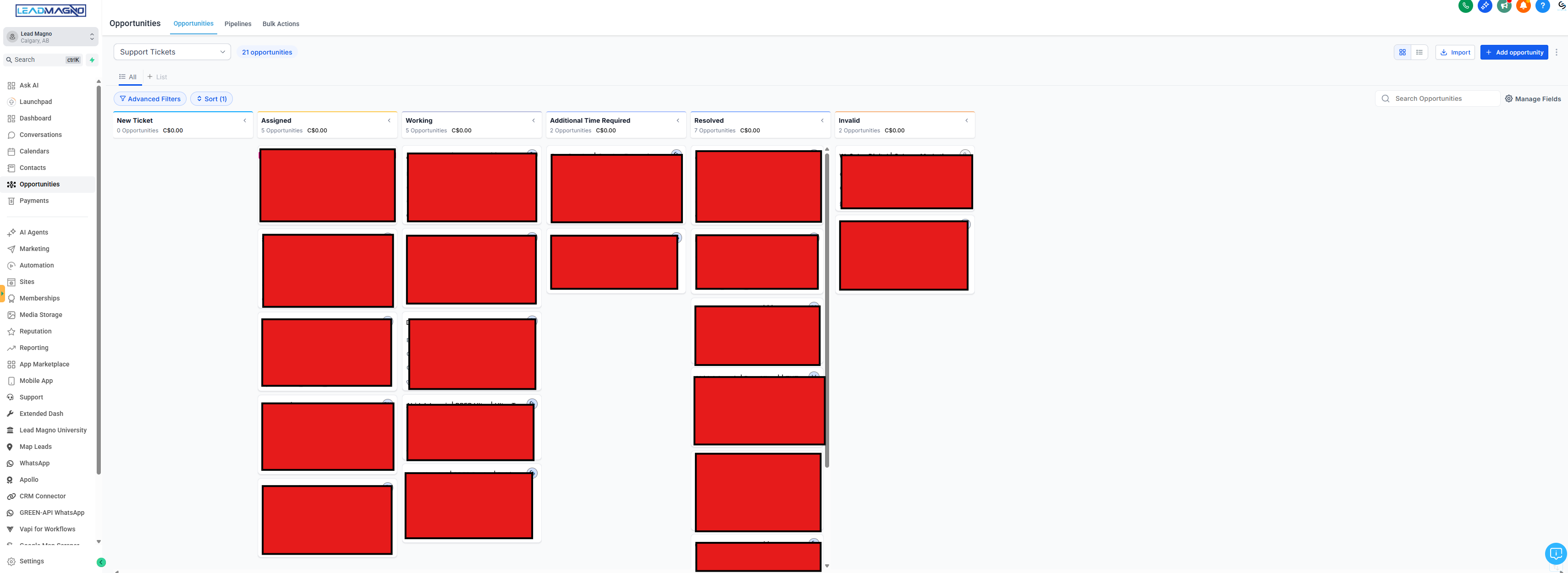
Inside Lead Magno, your ticketing system should be built on a dedicated record type or custom object—separate from leads and contacts. This keeps tickets organized and easy to report on. In your settings area, look for options such as Custom Objects, Modules, or Record Types, and create one named something like "Tickets" or "Support Cases".
As you create this object, ensure it can be linked to leads, contacts, or accounts. That connection lets your team see all tickets related to a specific customer directly from that customer's profile, providing valuable context during calls and follow‑ups.
Step 3: Add Essential Ticket Fields (Status, Priority, Ownership)
Next, configure the fields that will define every ticket. In the ticket object settings, add or customize fields such as:
Ticket ID: an auto‑generated unique number or code for easy reference.
Subject: a short, descriptive title of the issue or request.
Description: full details of the problem, including screenshots or links if needed.
Status: a dropdown with stages such as New, In Progress, Waiting on Customer, and Resolved.
Priority: values like Low, Medium, High, and Urgent to help your team triage work.
Owner / Assignee: the team member responsible for resolving the ticket.
Due Date / SLA Target: When the ticket should be answered or resolved by.
Keep the first version of your form simple. You can always add more fields (like category, channel, or product line) once your team is comfortable with the basics.
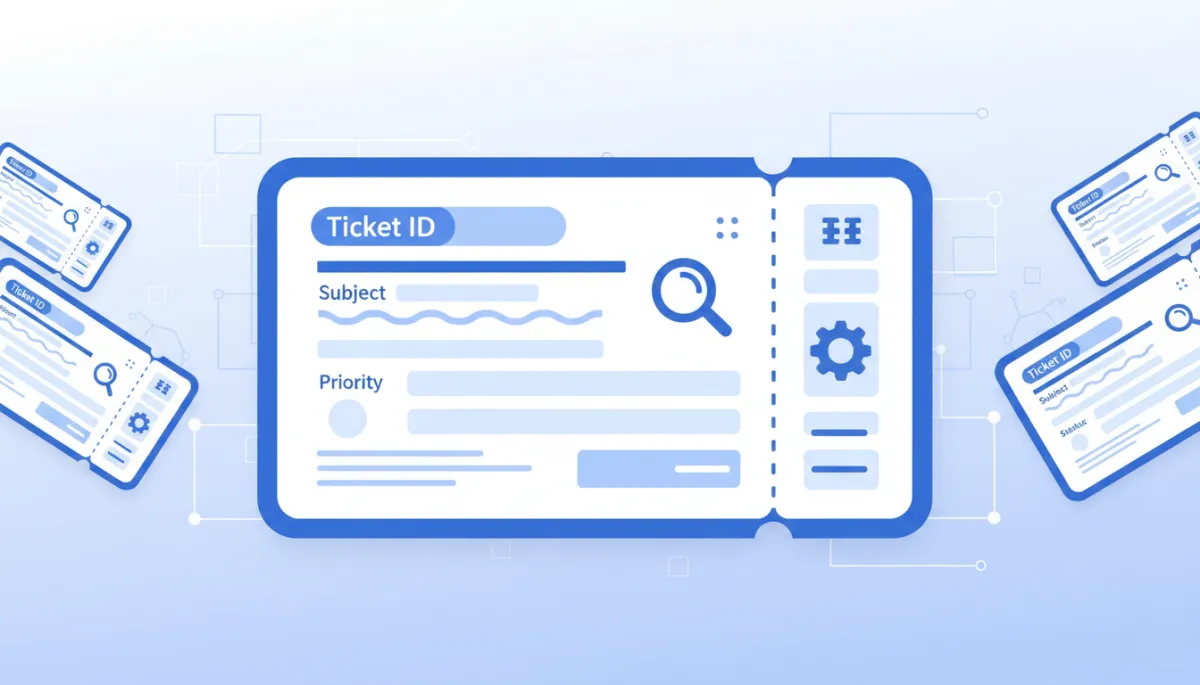
A clear ticket form helps teams capture consistent details and resolve issues faster.
Step 4: Connect Tickets to Your Leads and Contacts
A ticketing system only becomes powerful when it is tied to your customer data. In Lead Magno, set up a relationship between tickets and core records like leads, contacts, or accounts. This might be done through a lookup field or a related list, depending on your version and configuration options.
Once configured, your team should be able to open a lead or contact and immediately see all related tickets. Likewise, from any ticket, they should be able to click through to the person or company behind the request. This two‑way link keeps conversations contextual and reduces time spent searching for information.
Step 5: Capture Tickets Automatically from Email and Forms
To avoid manual data entry, configure Lead Magno to automatically create tickets whenever a customer reaches out through your key channels. Common options include:
Support email address: route messages sent to [email protected] into Lead Magno, where each new email becomes a ticket linked to the sender’s record.
Website contact or help form: connect your forms so each submission automatically generates a ticket with the form details filled in.
Lead capture campaigns: for sales teams, create tickets when high‑value leads request demos, pricing, or callbacks.
In your automation or integration settings, map incoming data to the ticket fields you created earlier, such as subject, description, and priority. This ensures every ticket arrives ready for action, not as a blank shell your team must complete by hand.
Step 6: Build Simple Workflows and Notifications
With your structure in place, use Lead Magno’s automation tools to keep tickets moving. Start with a few straightforward rules:
Automatically assign new tickets to a default queue or round‑robin between team members.
Send an email or in‑app notification to the owner when a ticket is assigned or updated.
Escalate tickets that remain in New or In Progress beyond your target response time.
Keep these workflows transparent and documented so your team knows what to expect. Over time, you can refine them based on real‑world performance and common bottlenecks.
Step 7: Create Views and Reports for Daily Management
Finally, turn your ticket data into a clear, daily dashboard for your team. In Lead Magno’s list or report builder, set up saved views such as:
My Open Tickets: all unresolved tickets assigned to the logged‑in user.
High‑Priority Today: tickets marked High or Urgent with due dates today or overdue.
Team Performance: summary reports by status, owner, and average resolution time.
Share these views with your team and use them in daily stand‑ups or weekly review meetings. Over time, they will highlight where you need more resources, clearer processes, or additional training.
Bringing It All Together
Creating a ticketing system in Lead Magno is less about complex technology and more about thoughtful structure: define what a ticket is, build a dedicated record type, add the right fields, connect tickets to your customer data, and then layer on automation and reporting. When done well, every request is captured, nothing slips through the cracks, and your team can focus on delivering fast, consistent responses.
Start simple, launch your first version, and then refine based on feedback from the people who use it every day. Within a few weeks, Lead Magno can evolve from a basic CRM into a reliable ticketing engine that supports both your customers and your team.


Facebook
Instagram
X
LinkedIn
Youtube
TikTok